Objects
Creating and updating objects is usually done using the API. API Usage describes how to do it in detail. But it’s also possible to manage objects in the admin interface. In this tutorial we will create and update objects using the Objects admin.
Create an object type
Each object must belong to a particular object type. The access to objects (the authorization) is also based on the related object types. Therefore before creating the object we need to make an object type. The section “Add an object type” of the Authorization describes how to do it.
Create an object
Now we can create an object. First, let’s construct some tree data that matches our JSON schema in the related object type:
{
    "boomgroep": "Solitaire boom",
    "boomhoogteactueel": 3,
    "leeftijd": 100,
    "meerstammig": false
}
If you want, you can validate your JSON data against the JSON schema on JSONschema.dev
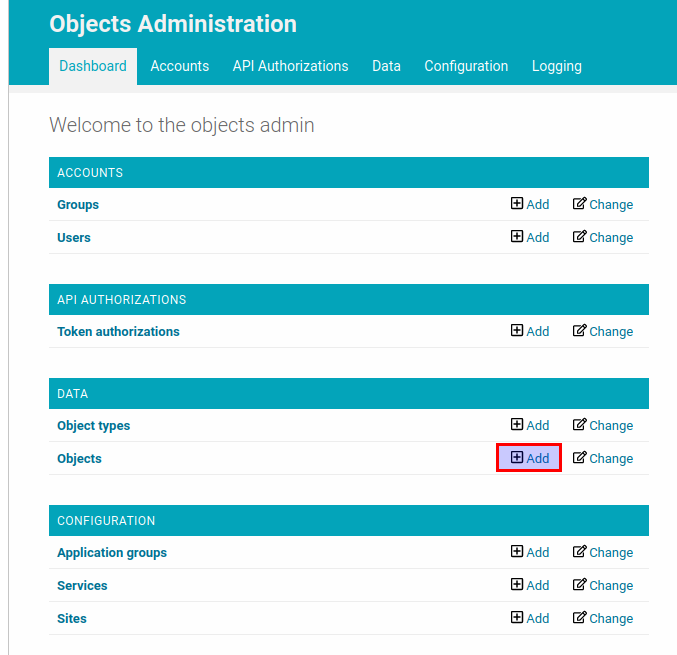
In the Objects admin dashboard, click on “Objects” and click on the “Add” button.
Select the object type added on the previous step in the “Object type” dropdown and fill in all the record data including JSON data, describing the tree object. “Version” is the version of the related object type. Together with the “Object type” field it identifies which JSON schema should be used to validate JSON in the “Data” field.
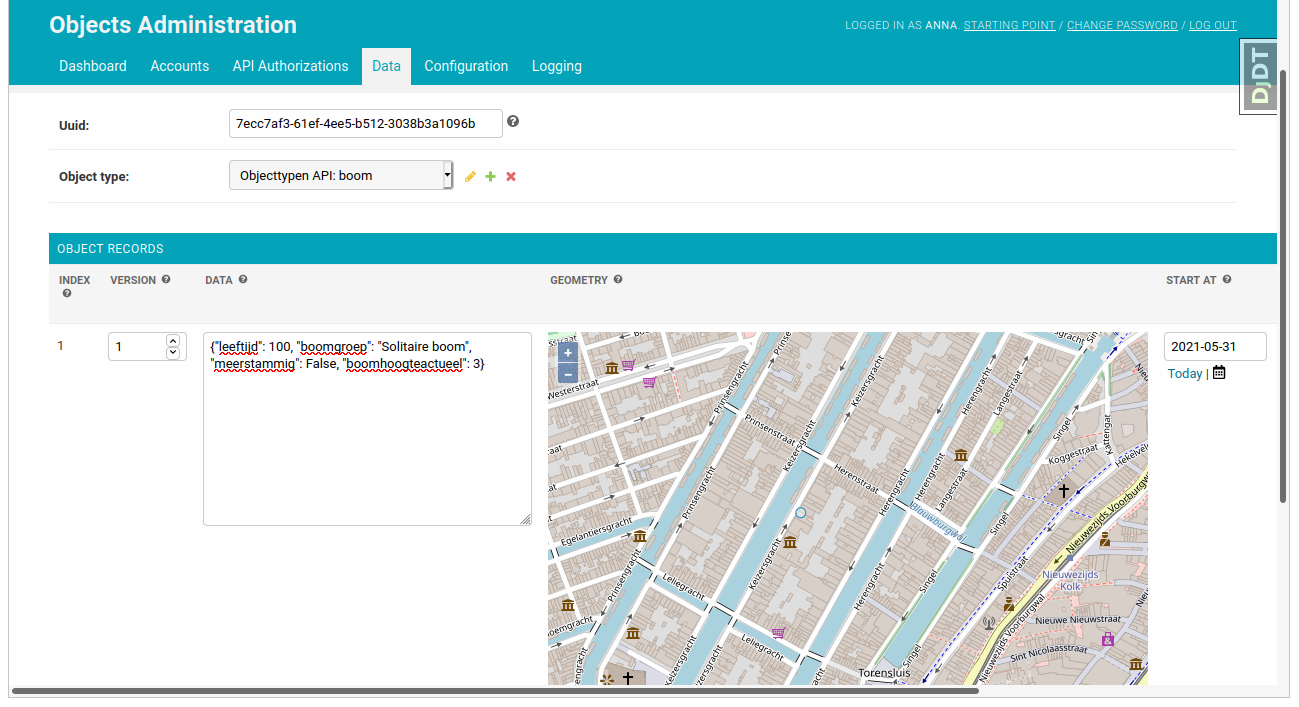
When you click on the “save” button the JSON data is validated against the JSON schema defined in the related object type. If the data is valid the object will be created.
Add an object record
Once the object record is created it can’t be changed. If you want to change the data the new record should be created. If the previous record contains incorrect information, it can be corrected in the “Correction” field of the next record.
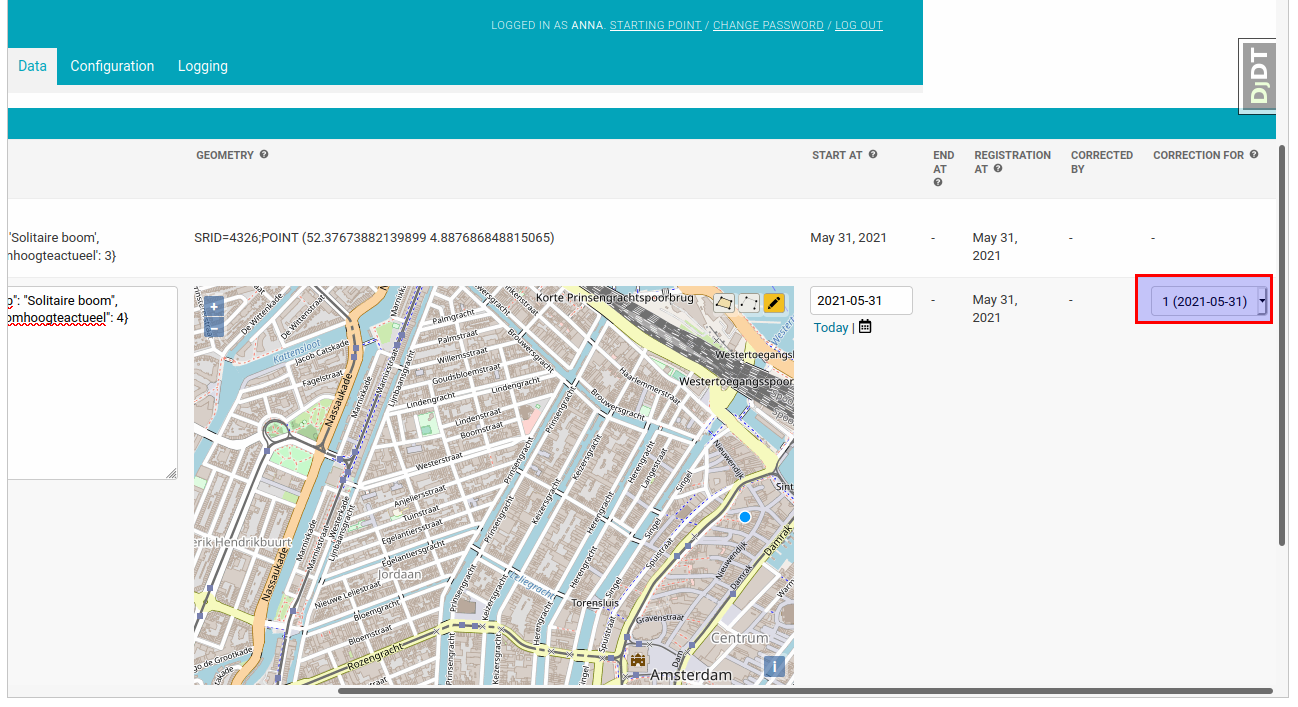
In the API you always see one record for a specific object, which contains data of a certain time (by default the latest one). However in the admin interface you can see all the records created for the object.
Search objects in the admin
You can search by UUID or inside object data using the format:
field__operator__value
Operators:
exact- exact matchicontains- case insensitive substring matchgt- greater thangte- greater than or equal tolt- less thanlte- less than or equal to
Examples:
0233da1f-32c1-4e7d-9896-2eecc7d24288- searching directly by object UUIDid__exact__1naam__icontains__boomdate__gt__2025-01-01date__gte__2025-06-15date__lt__2025-12-31date__lte__2025-06-15location__city__exact__Amsterdamlocation__region__icontains__Noord