Object types
Creating and changing object types are common tasks for the API. API Usage describes how to do it with HTTP requests. But you can also use the Objecttypes admin to create, publish and update object types.
Create an object type
Let’s start with creating an object type. For example, you want to store data about trees in your town. First, you need to decide which attributes your data will have and to design JSON schema for trees. You can take a look at provided Examples. In this example we will use the same JSON schema as in the API Usage page.
{
  "$schema": "http://json-schema.org/draft-07/schema",
  "$id": "https://api.vng.nl/objecttypes/boom/schema.json",
  "type": "object",
  "title": "Boom",
  "description": "Een houtachtig gewas (loofboom of conifeer) met een wortelgestel en een enkele, stevige, houtige stam, die zich boven de grond vertakt.",
  "properties": {
    "boomgroep": {
      "$id": "#/properties/boomgroep",
      "type": "string",
      "title": "Boomgroep",
      "description": "Aanduiding of de boom onderdeel is van een boomgroep.",
      "examples": [
        "Laanboom"
      ],
      "enum": [
        "Laanboom",
        "Boomweide",
        "Solitaire boom"
      ]
    },
    "boomhoogteactueel": {
      "$id": "#/properties/boomhoogteactueel",
      "type": "integer",
      "title": "BoomhoogteActueel",
      "description": "Hoogte van de boom in meters.\nEenheid: m"
    },
    "leeftijd": {
      "$id": "#/properties/leeftijd",
      "type": "integer",
      "title": "Leeftijd",
      "description": "Leeftijd van het beheerobject in jaren.\nEenheid: Aantal",
      "examples": []
    },
    "meerstammig": {
      "$id": "#/properties/meerstammig",
      "type": "boolean",
      "title": "Meerstammig",
      "description": "Aanduiding voor meerstammigheid bij een Boom"
    },
    "type": {
      "$id": "#/properties/type",
      "type": "string",
      "title": "Type",
      "description": "Typering van het beheerobject."
    }
  },
  "required": ["boomhoogteactueel", "leeftijd"]
}
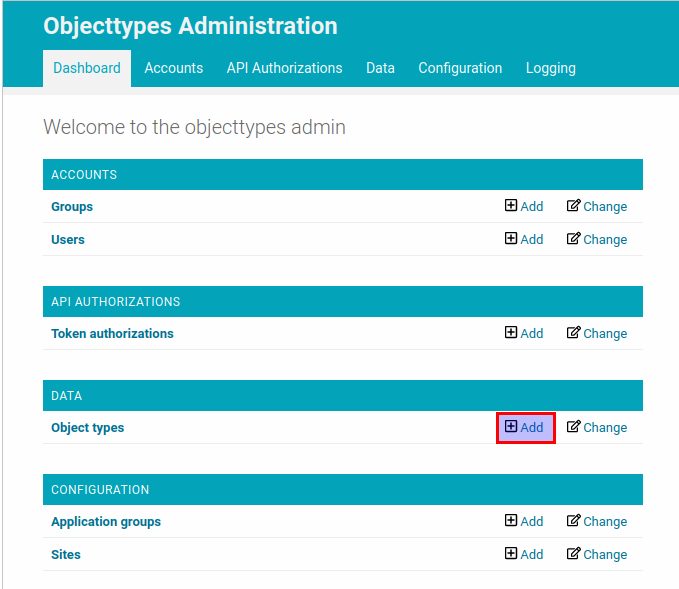
In the Objecttypes admin dashboard click on “Objecttypes” and click on the “Add” button.
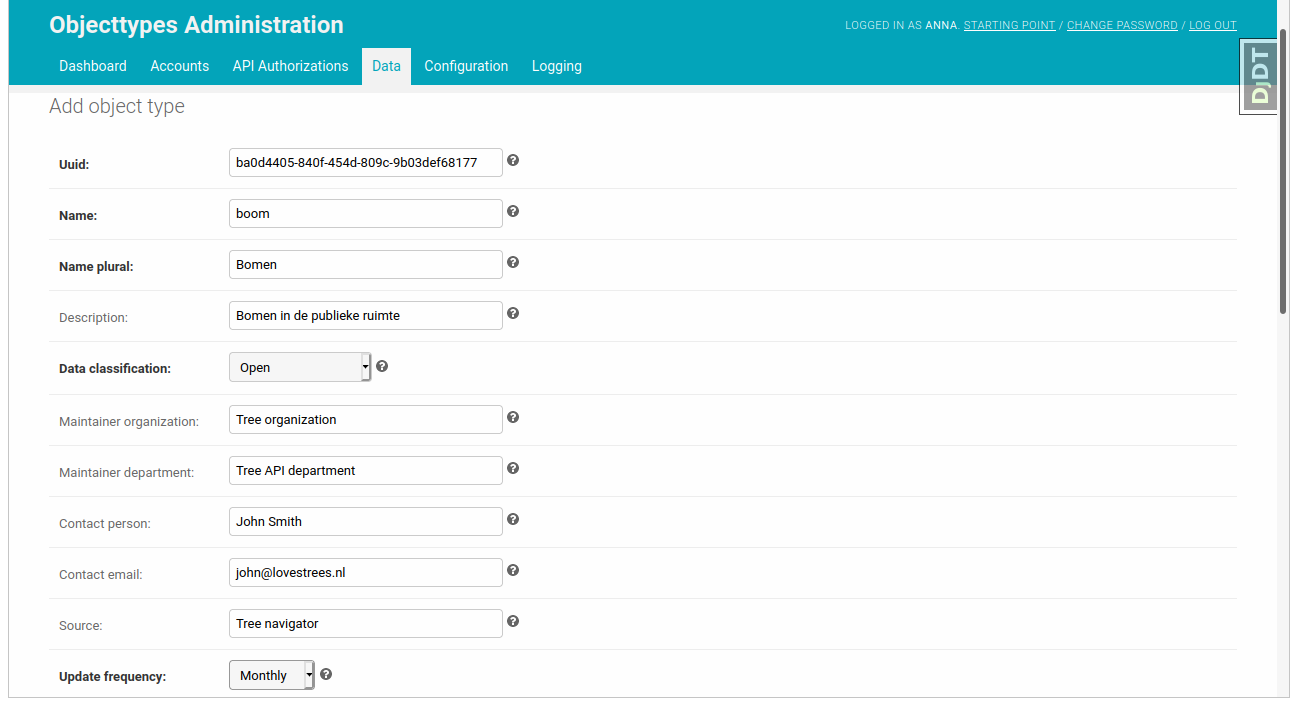
Fill in the form with the meta information about the object type. The uuid field is already prefilled in.
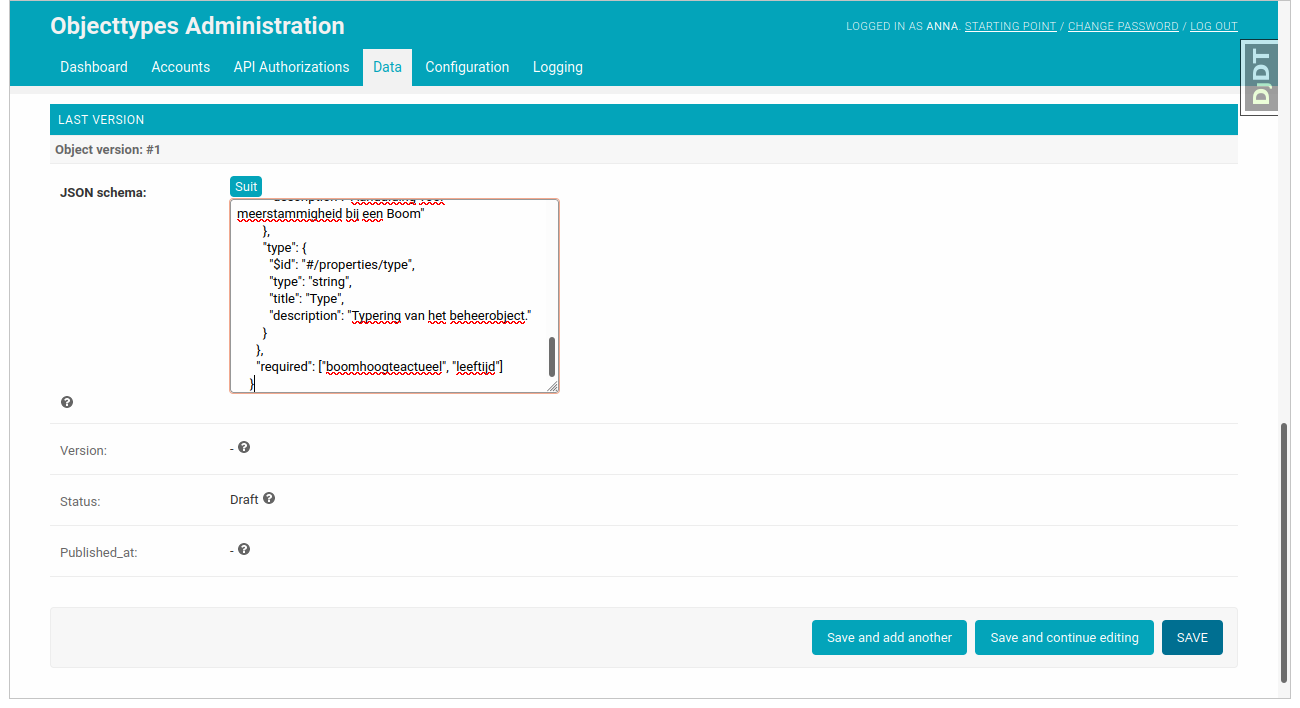
Scroll down, add the JSON schema in the “Last version” subsection and click on the “save” button.
The object type has been created.
Publish an object type version
Let’s take a look at our freshly created object type. You can see that the object type has the ‘draft’ status, which means, that it can be updated without creating a new version. Once the object type version is published you can’t change it anymore, unless you create a new version.
Let’s publish our object type version. It can be easily done with clicking on the “publish” button.
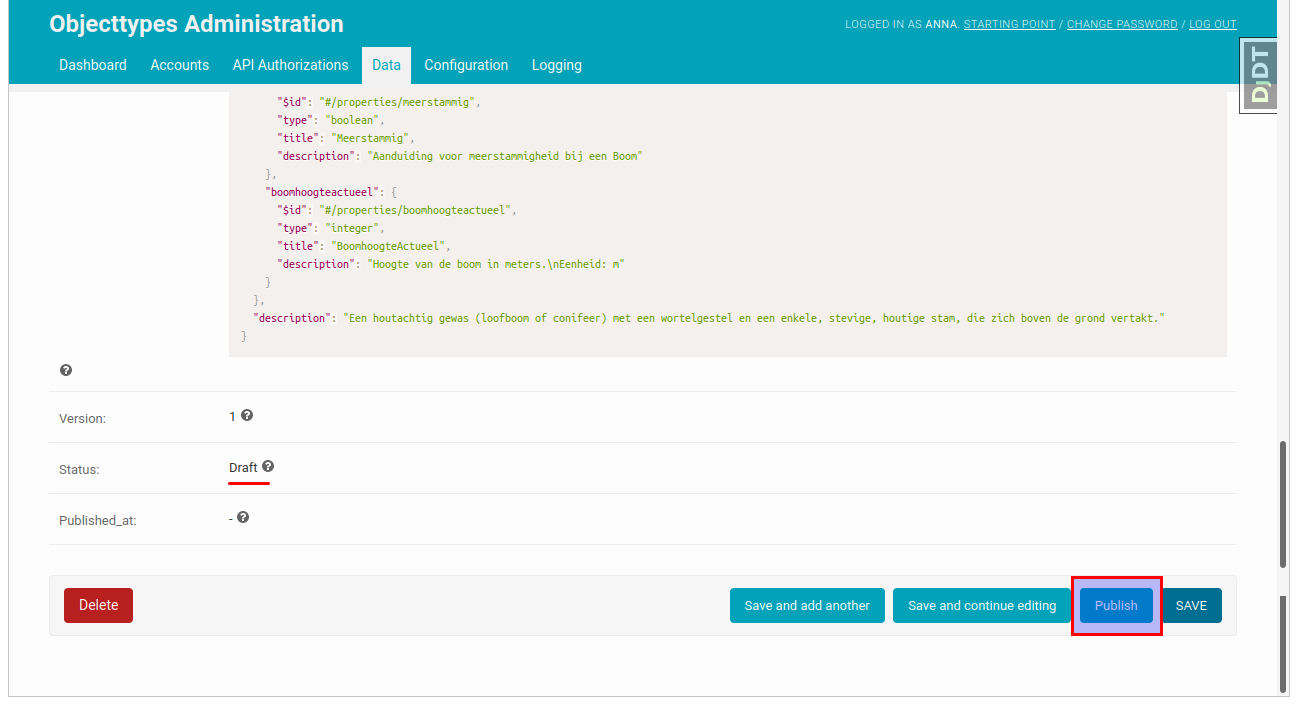
Now the status of the “last version” is changed to “published” and the value of the “JSON schema” attribute becomes read-only,
Create a new version
After the object type version is published the only way to change the JSON schema is to create a new version. You can do it by clicking on the “New version” button. The new version will have the same JSON schema as the previous one. You can use it as initial value and edit it the way you want it.
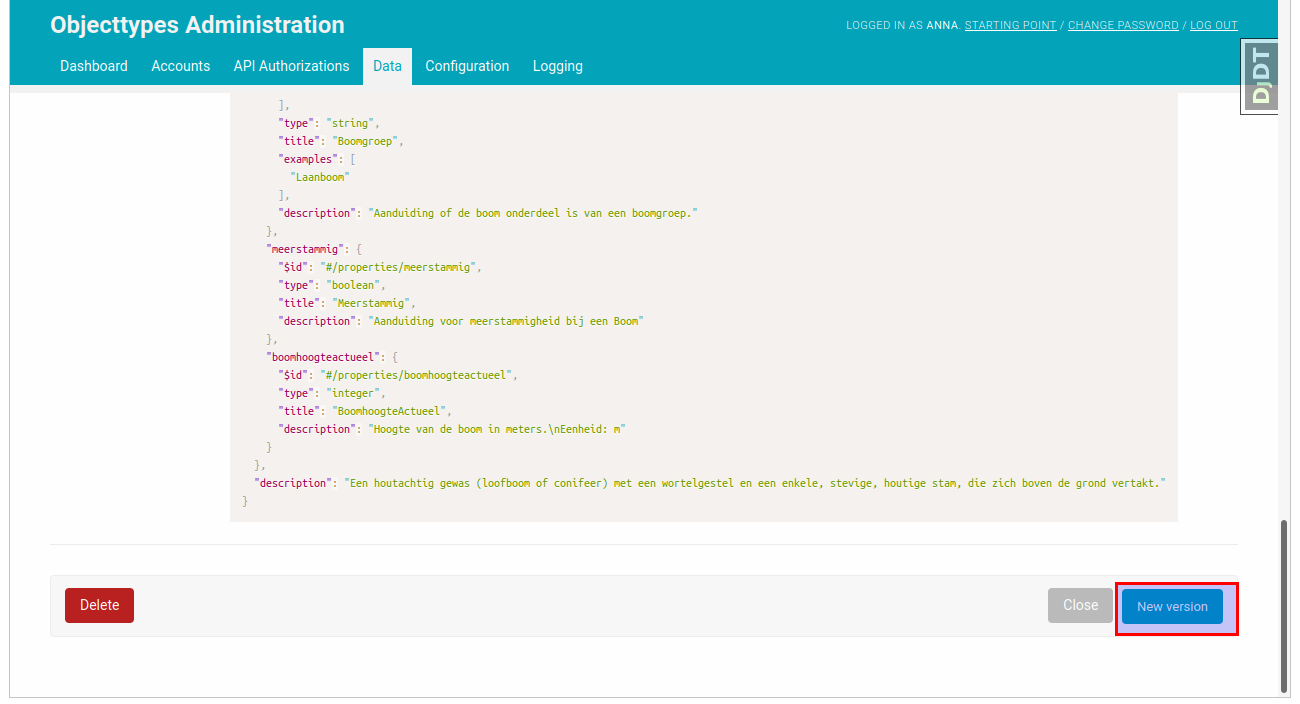
In this example we remove the “required” attribute in the JSON schema and save it.
Display the version history
The versions are created to keep track on changes in the JSON schema. You can see all the previous changes if you click on the “history” button in the top right corner of the object type admin page.
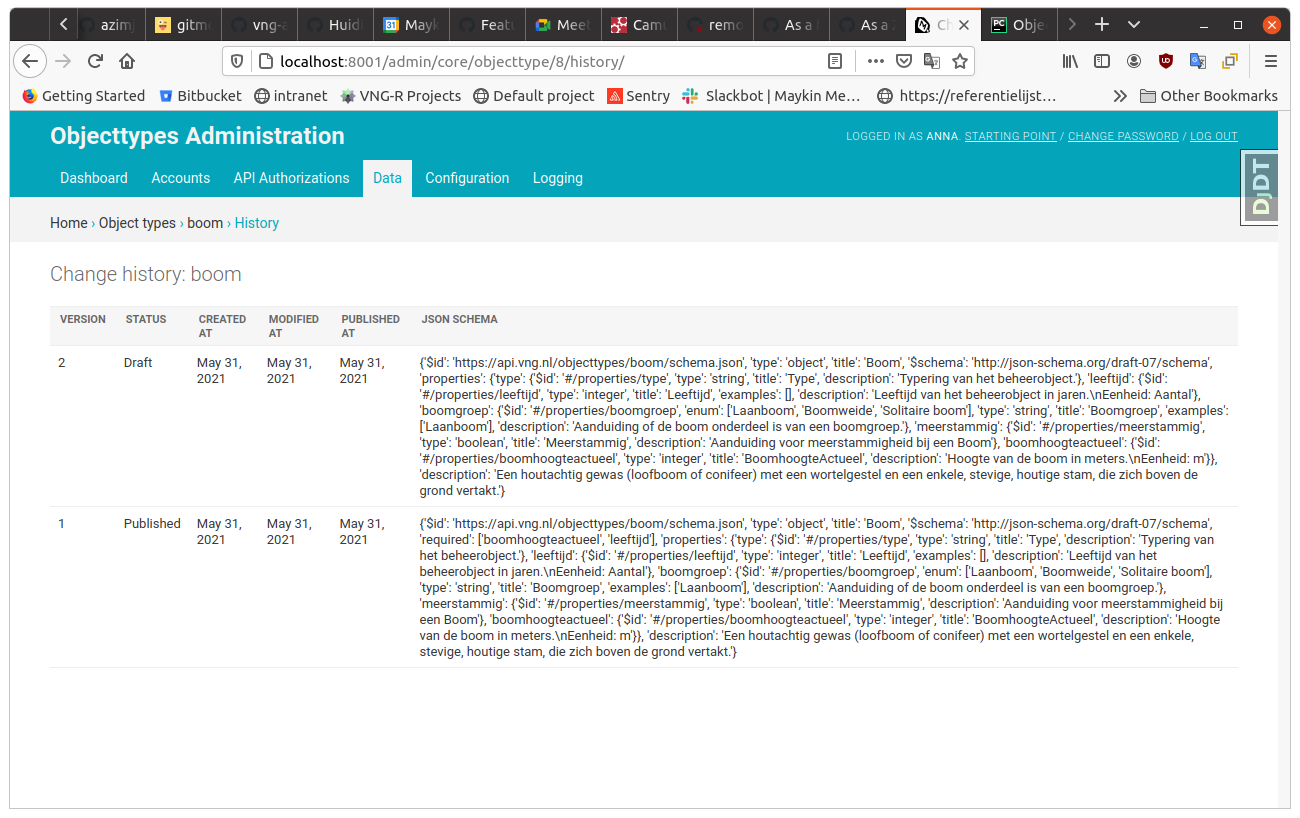
You can see all the versions, their statuses, the creation dates and the related JSON shemas.
Export and import object types
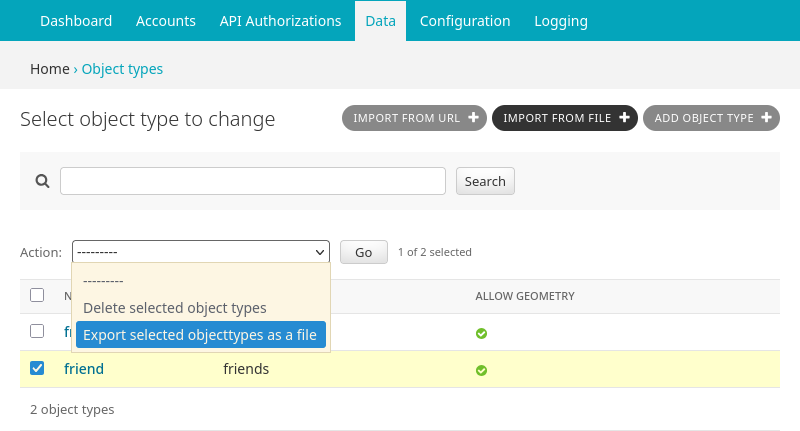
To export object types including their history, select the desired object types in the Objecttypes changelist dashboard, then use the “Export selected objecttypes as a file” action from the Action dropdown menu and click “Go”. This will download an archive containing the selected object types with all versions.
To import object types, navigate to the Objecttypes changelist and select the “Import from file” action. Upload the archive previously exported, optionally keeping the original UUIDs by checking the corresponding checkbox. After successful import, you will see a confirmation message.
Note
If UUIDs are kept during import, existing object types with matching UUIDs should not exist. You cannot overwrite existing objects types. If no objects exist for the types, you should be able to delete the object type and proceed with importing.
If UUIDs are not kept, new UUIDs will be generated and existing object types with the same name will not be overwritten.
Note
When importing multiple object types, either the whole import succeeds, or the whole import fails. There are no partial imports.